
How to Use Cruise Radar: The Complete Guide
Step-by-step walkthrough of the Cruise Radar Chrome extension. Learn how to install, find deals, analyze prices, and track sailings for price drop alerts.
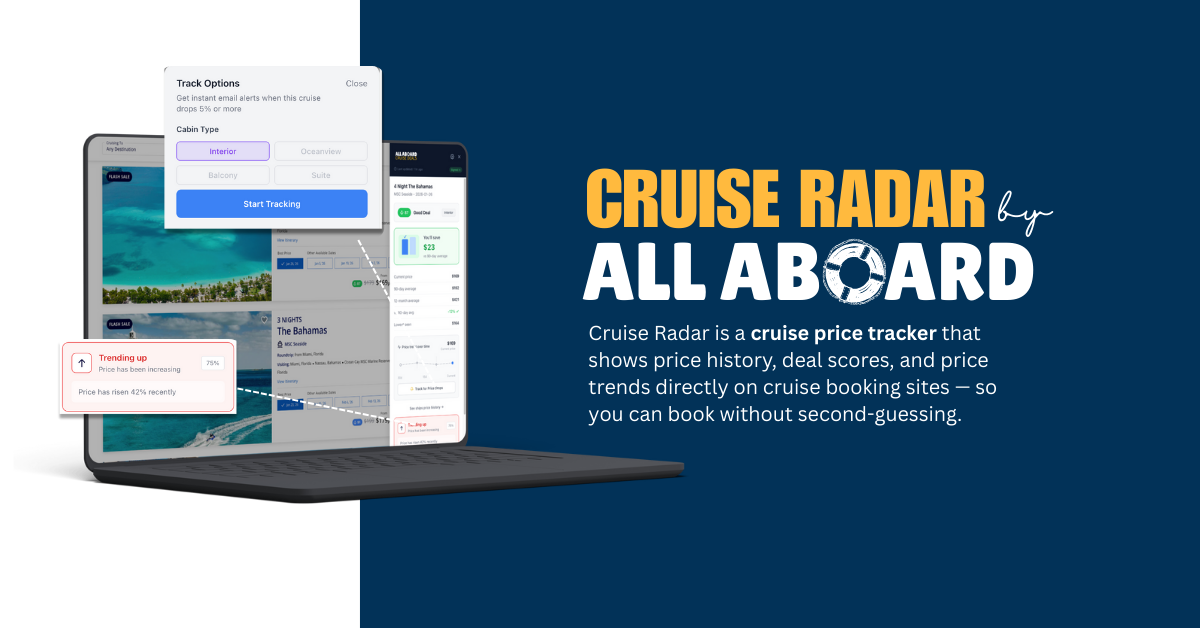
Cruise lines call everything a "deal." But how do you know if that $1,400 Caribbean cruise is actually a good price?
Cruise Radar shows you instantly — with deal scores based on 35,000+ fares tracked weekly. This guide walks you through everything: installation, setup, finding deals, and tracking prices. For a quick feature overview, see the Cruise Radar page.
Part 1: Installing the Extension
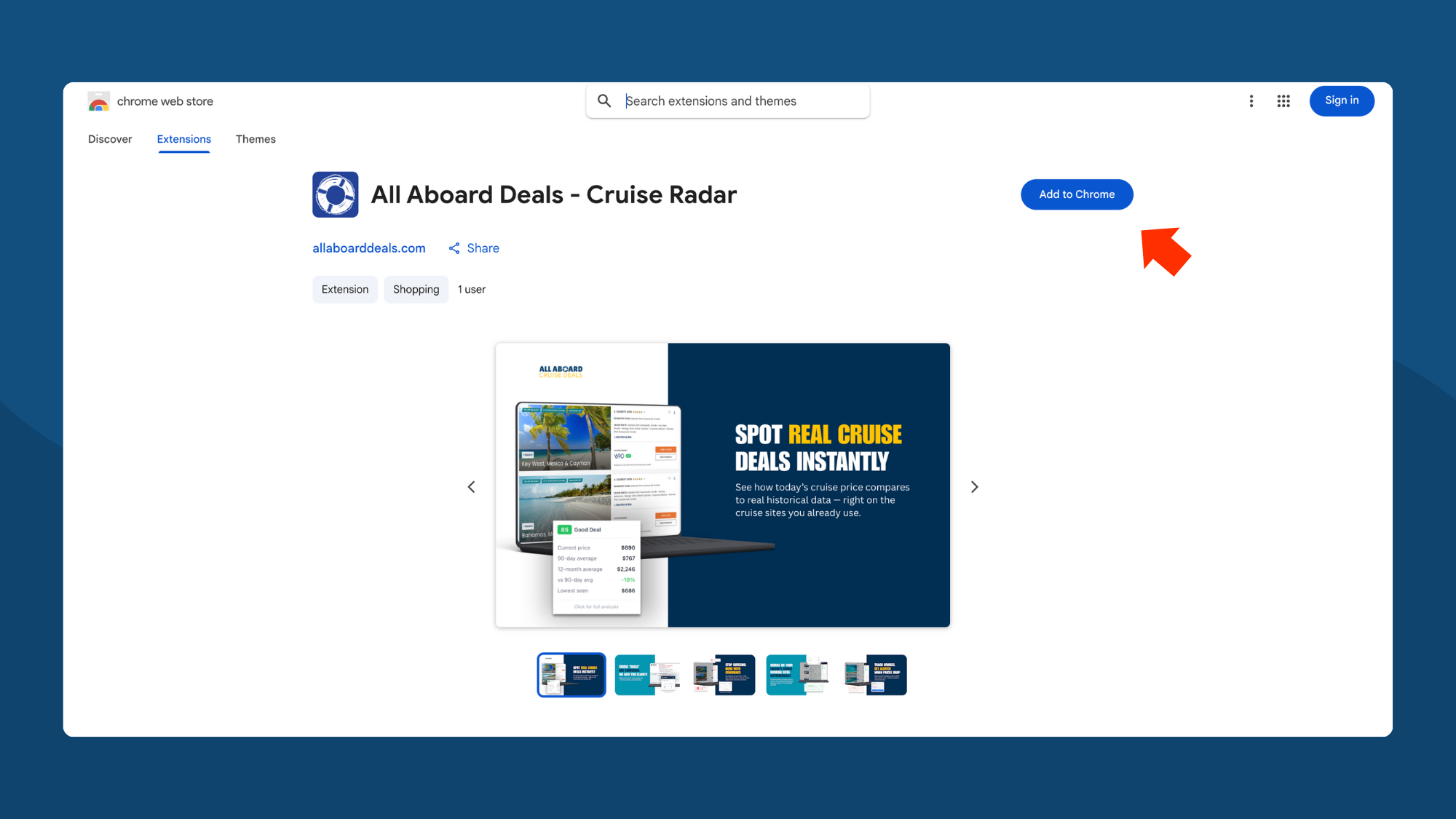
Step 1: Find Cruise Radar in the Chrome Web Store
Go to the Chrome Web Store listing for Cruise Radar and click Add to Chrome.
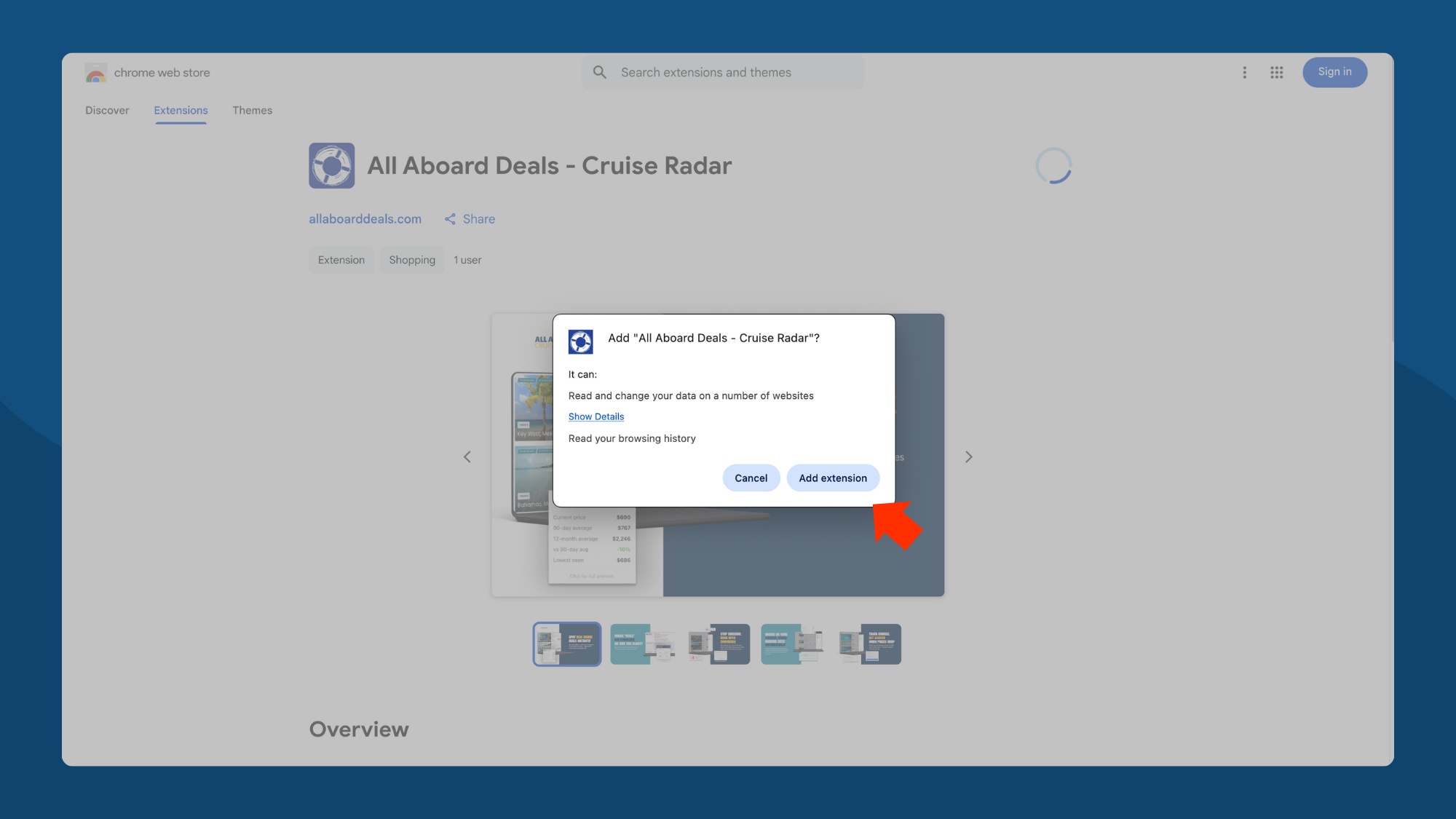
Step 2: Confirm the Installation
A popup will ask you to confirm. Click Add extension.
Part 2: Setting Up the Extension
Step 3: Pin the Extension (Optional but Recommended)
After installation, the Welcome screen opens. We recommend pinning Cruise Radar to your toolbar for easy access.
Click the puzzle piece icon in Chrome's toolbar, find "All Aboard Deals - Cruise Radar," and click the pin icon.

Step 4: See Supported Sites
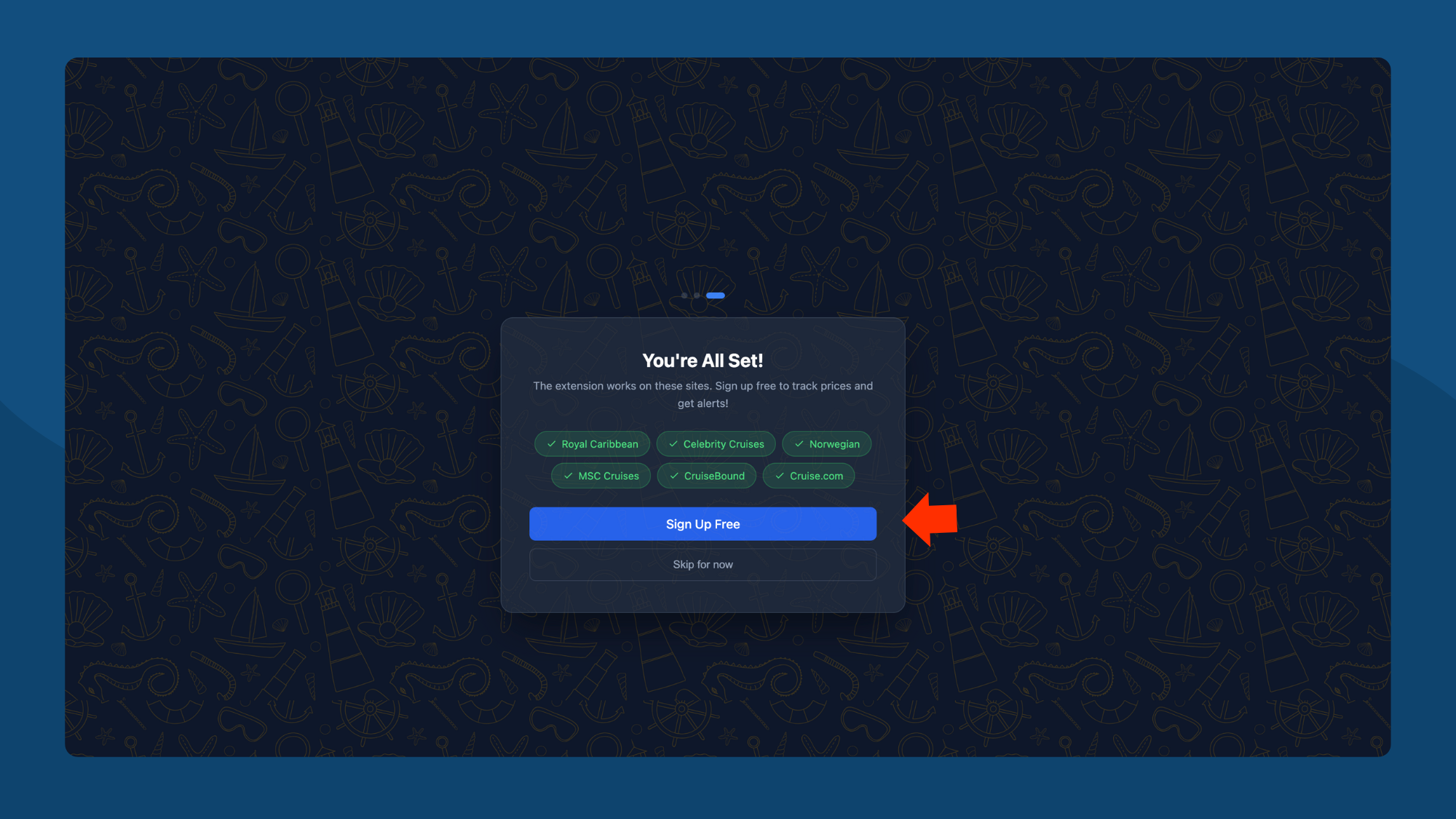
Click Let's Get Started to continue. The next screen shows all the cruise sites where Cruise Radar works:
- Royal Caribbean
- Celebrity Cruises
- Norwegian
- MSC Cruises
- CruiseBound
- Cruise.com
You can Sign Up Free to track prices and get alerts, or Skip for now to browse with scores only.
Step 5: Create an Account (Optional)
To track prices and get email alerts, create a free account. Free accounts can track up to 2 cruises.
When you click Sign Up Free, you'll land on the Sign In page first.
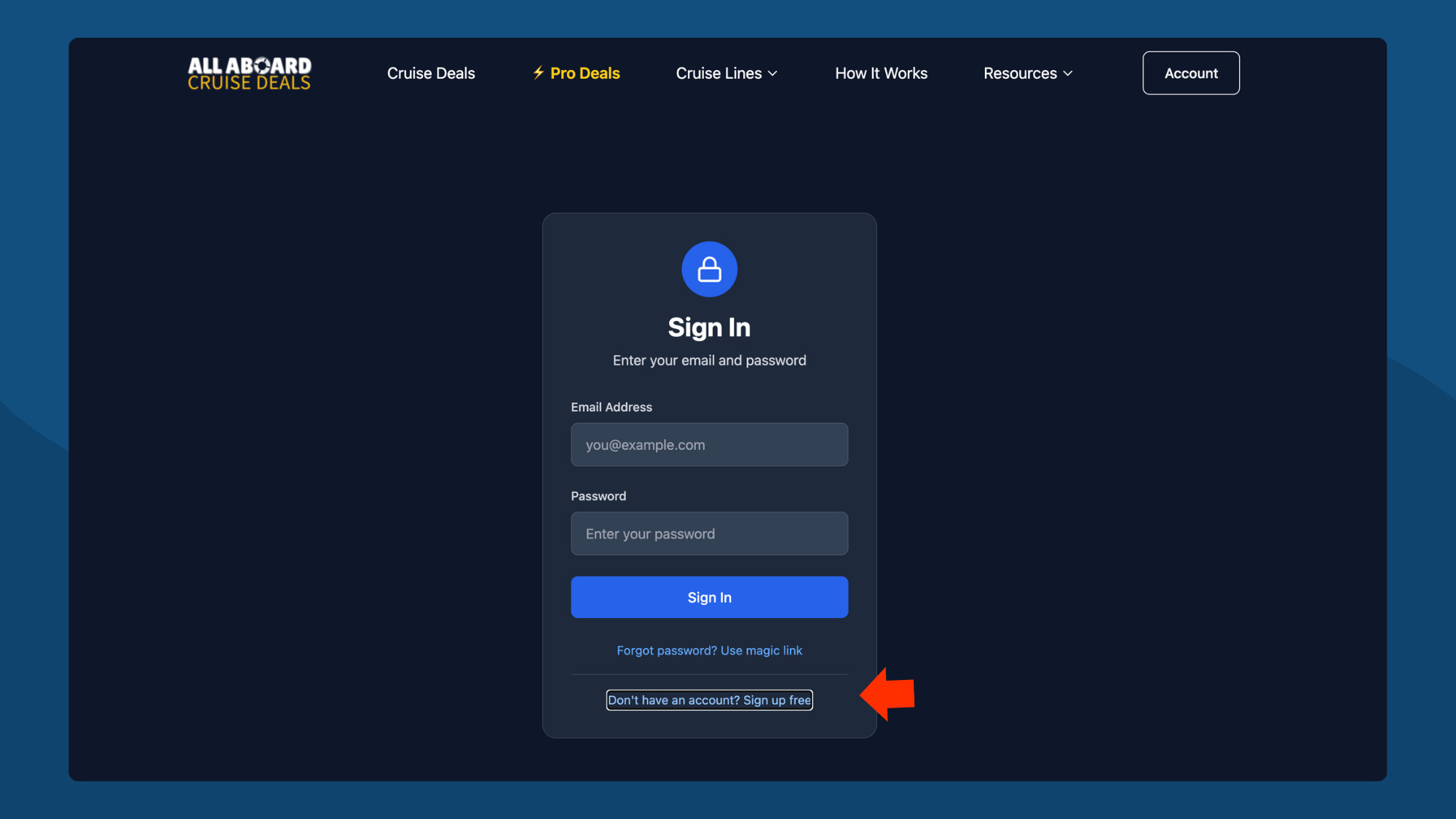
If you don't have an account yet, click Don't have an account? Sign up free at the bottom.
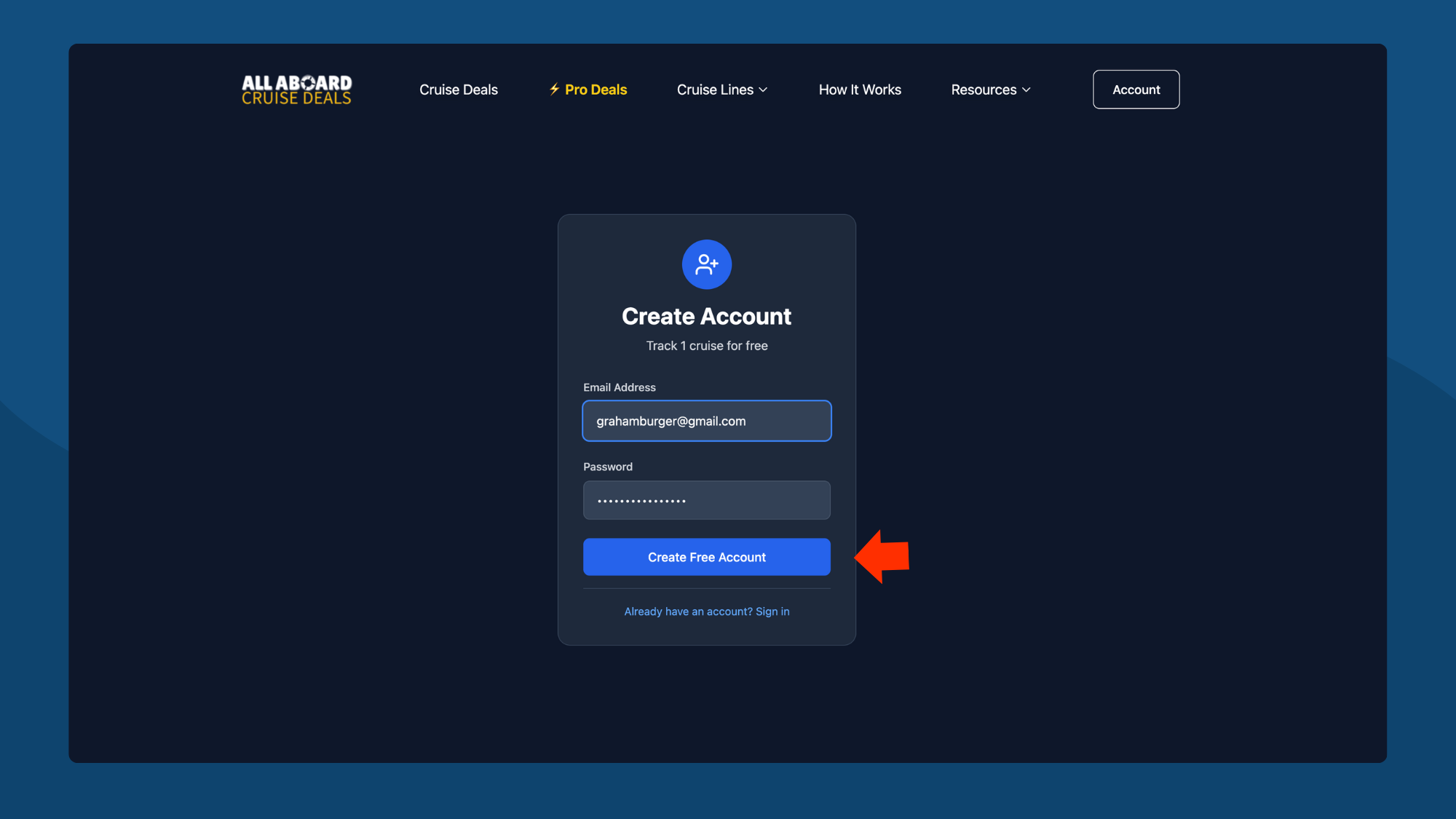
Enter your email and create a password, then click Create Free Account.
Part 3: Finding Deals
Step 6: Search for Cruises
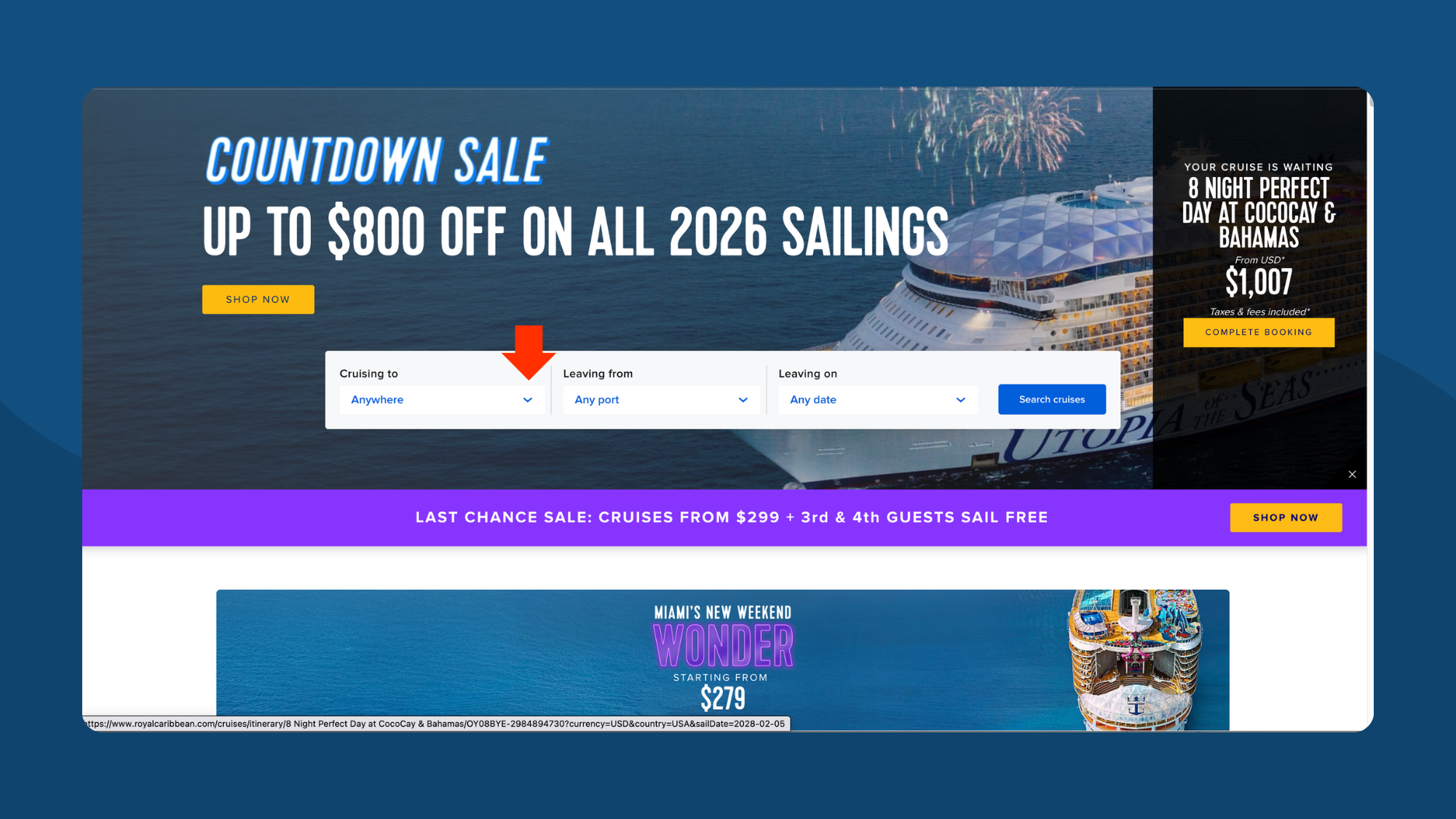
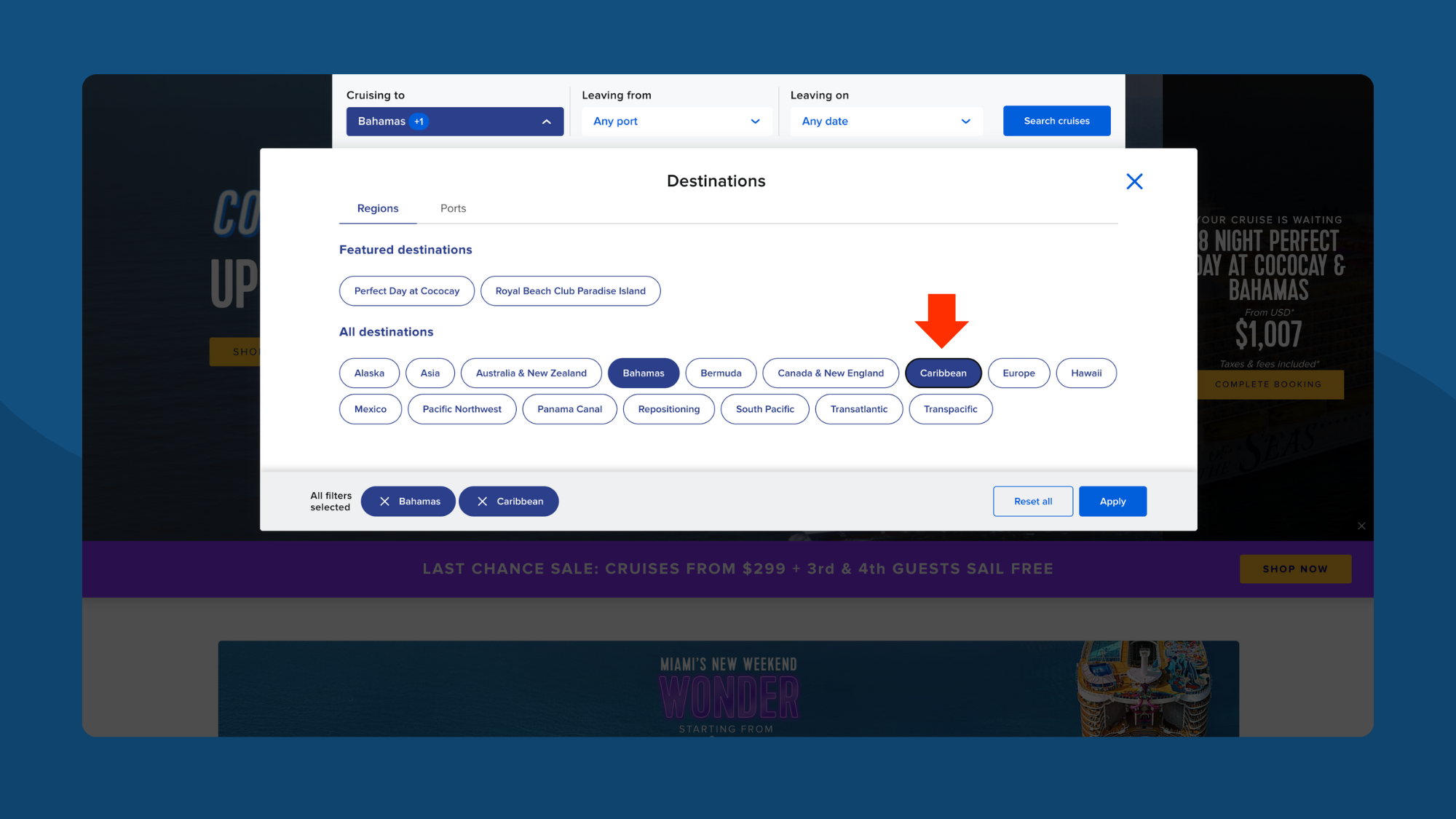
Go to any supported cruise site. In this example, we're on Royal Caribbean. Use the search filters to find cruises — destination, port, dates, etc.
Step 7: Wait for Scores to Load
When you first land on search results, you'll see a loading indicator next to prices. This means Cruise Radar is checking our database for ship and sailing price history.
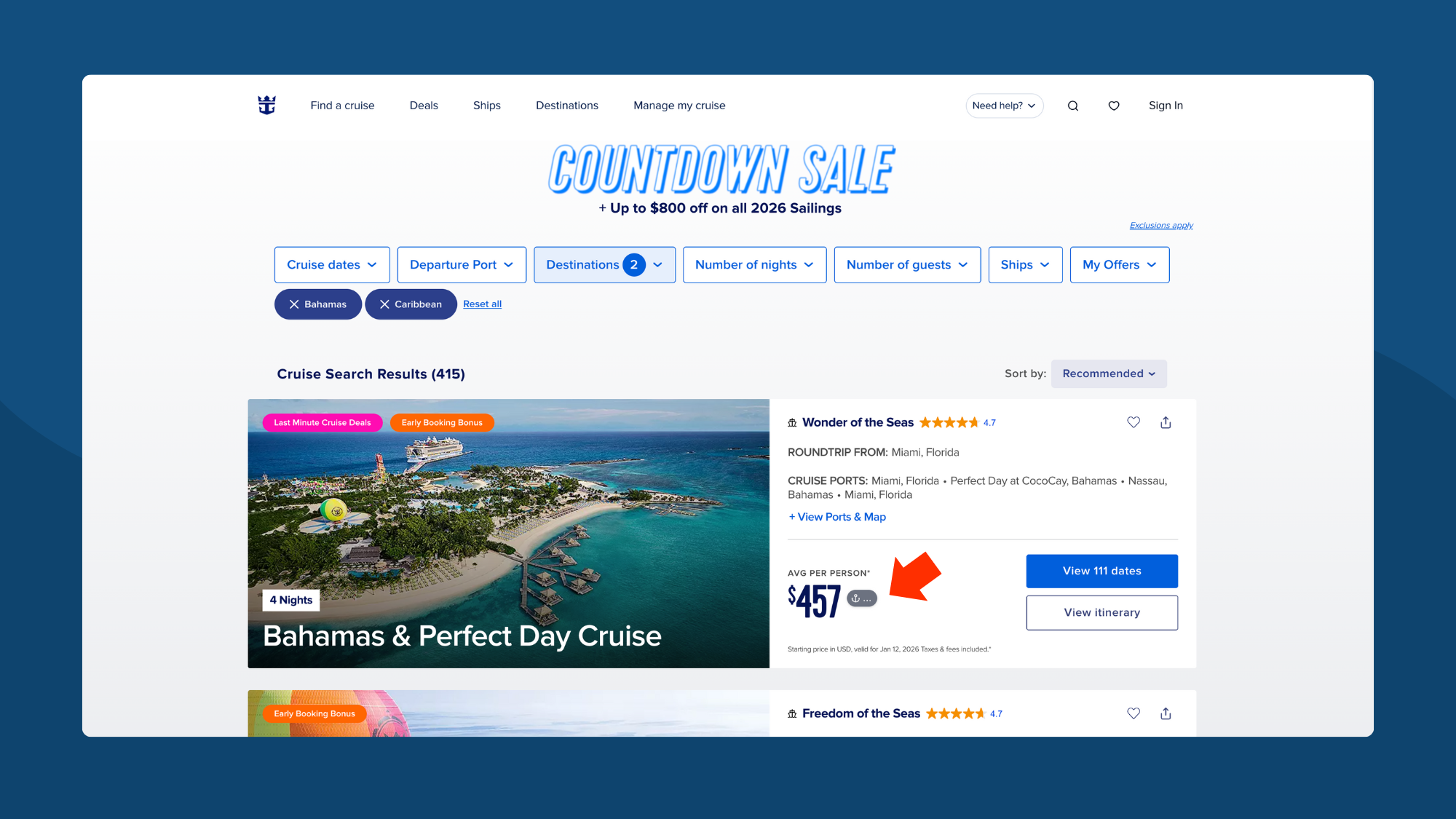
This typically takes 1-3 seconds. Once loaded, you'll see the deal score badges appear.
Step 8: See Deal Scores on Search Results
Once loaded, Cruise Radar displays deal score badges next to each price. Scores range from 0-100.
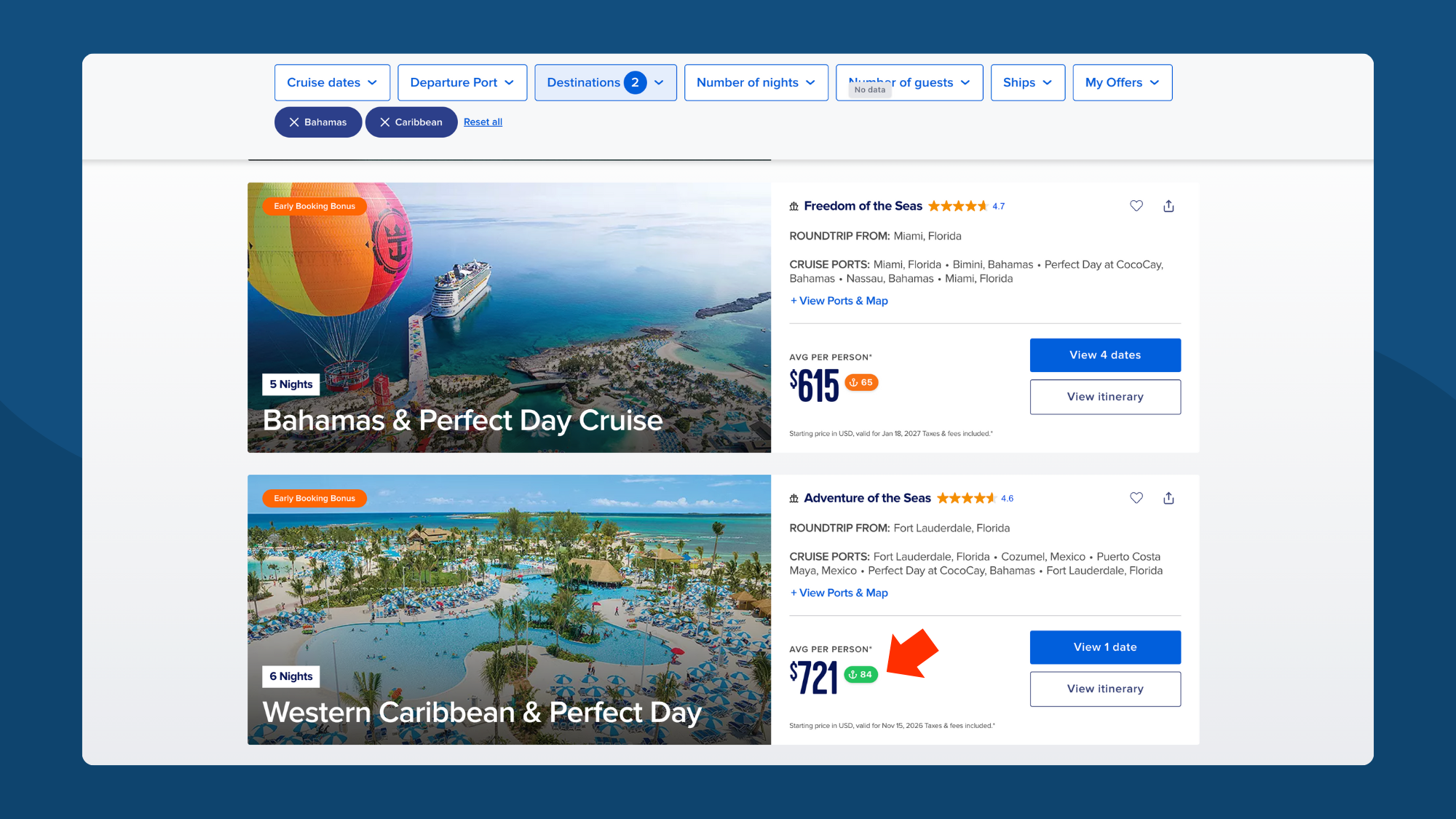
What the scores mean:
| Score | Verdict | What It Means |
|---|---|---|
| 95-100 | Exceptional | Well below trip average |
| 90-94 | Great Deal | Below trip average |
| 80-89 | Good Deal | Slightly below trip average |
| 70-79 | Average | About trip average |
| 60-69 | Fair Price | Slightly above trip average |
| Below 60 | Overpriced | Above trip average |
Step 9: Hover for Quick Details
Hover over any score badge to see a quick summary: the verdict, current price, 90-day average, and lowest price seen.
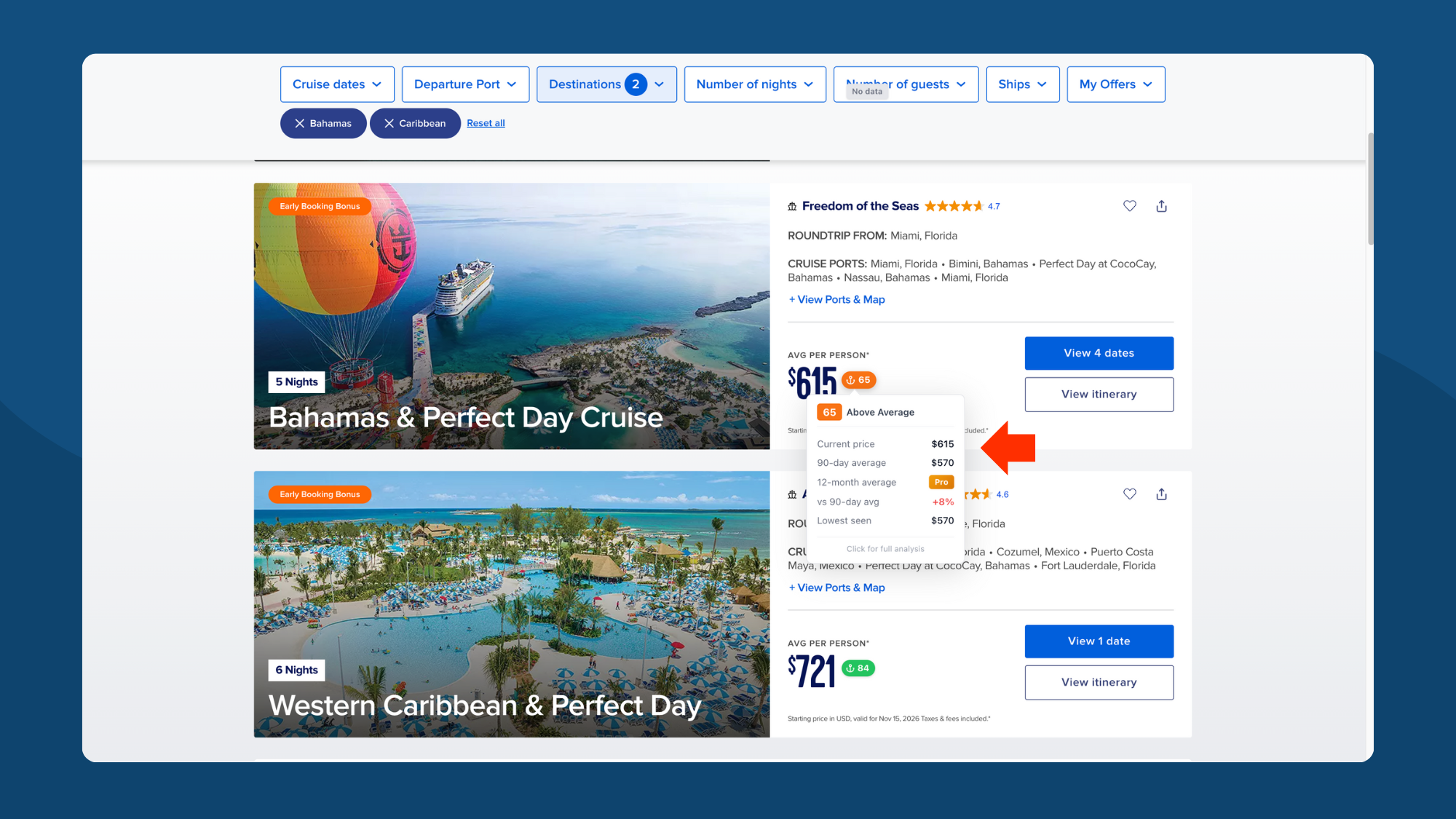
Click Click for full analysis to open the detailed panel.
Part 4: Analyzing a Deal
Step 10: Open the Full Analysis Panel
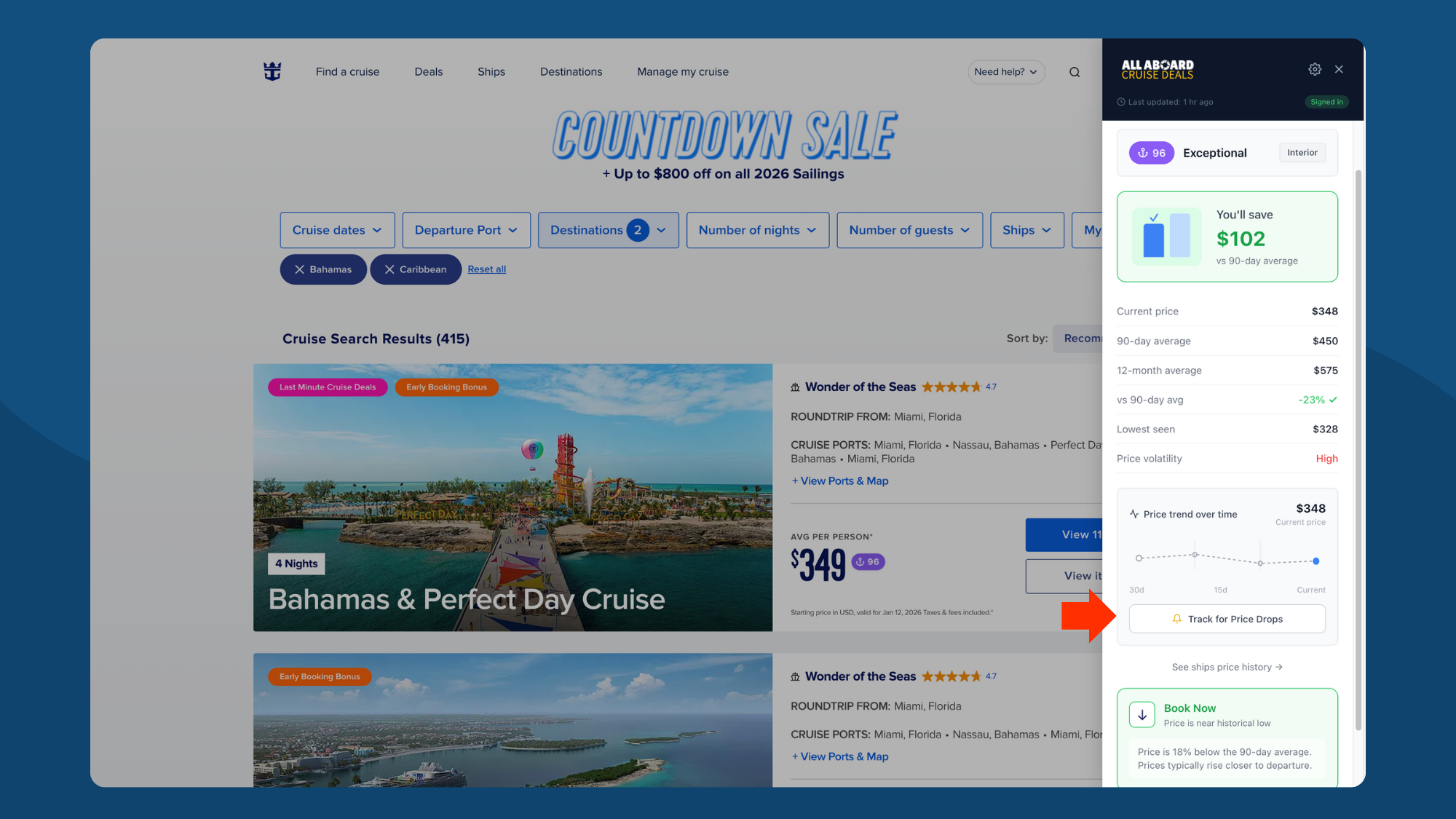
Click any score badge to open the sidebar with complete pricing intelligence.
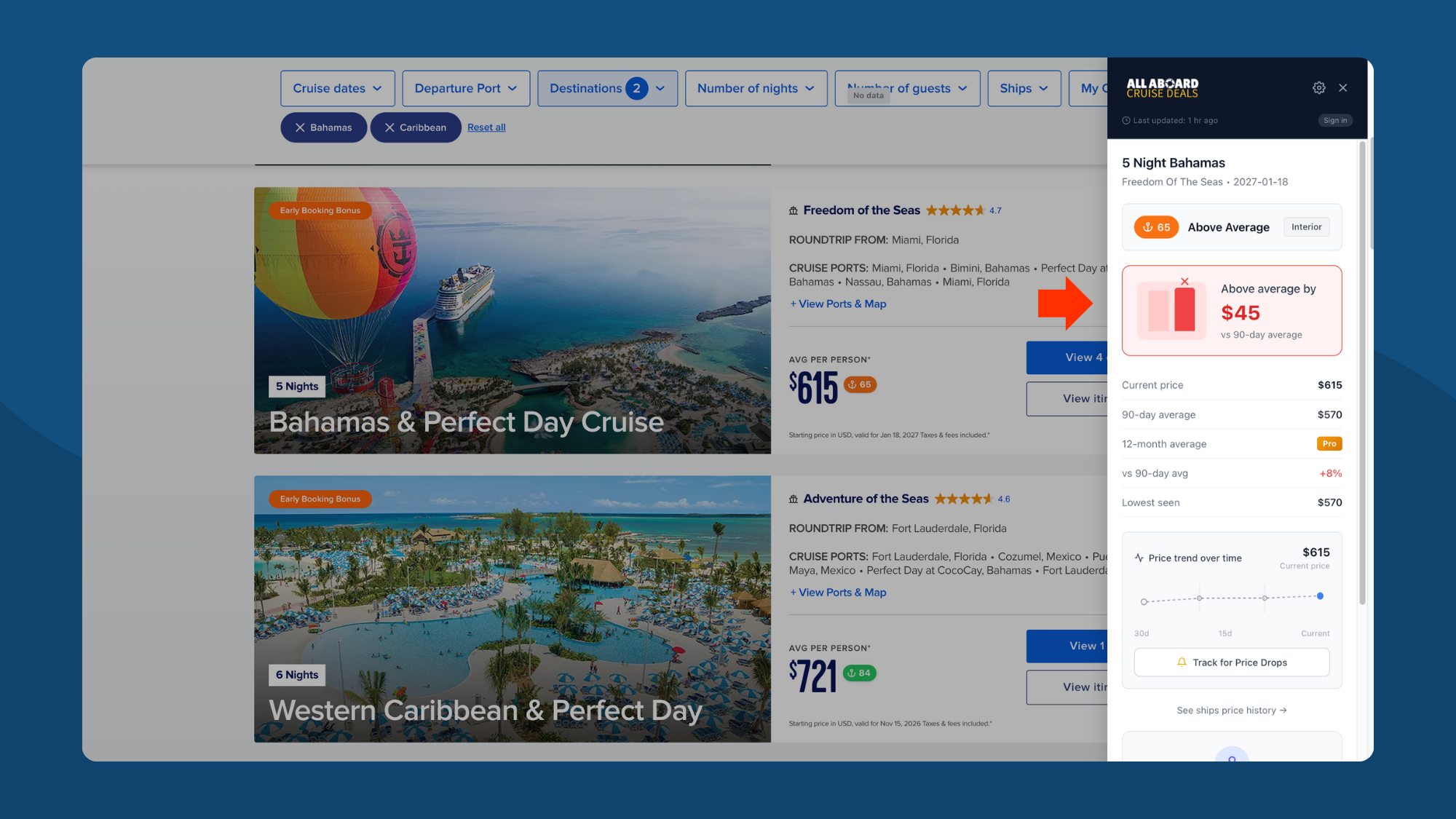
What you'll see:
- Score badge — The deal score (0-100) with verdict
- Above/Below average indicator — Visual showing how much you'd save or overpay
- Current price — Today's price
- 90-day average — Recent typical price
- 12-month average — Longer-term average (Pro feature)
- vs 90-day avg — Percentage above or below average
- Lowest seen — The lowest price we've tracked
- Price volatility — How much this sailing's price fluctuates (Pro feature)
- Book or Wait — Actionable recommendation based on pricing patterns (Pro feature)
- Price trend chart — 30-day visual of price movement
- Track for Price Drops — Set up alerts
Step 11: Compare Cabin Types
When you select a sailing, Cruise Radar scores each cabin category separately. This helps you find the best value at every price point.

In this example:
- Interior: 62 (Fair)
- Outside View: 77 (Average)
- Balcony: 77 (Average)
- Suite: 45 (Overpriced)
The Outside View and Balcony are better deals relative to their historical prices than Interior or Suite.
Part 5: Tracking Prices
Step 12: Start Tracking a Sailing
Found a cruise you like but not ready to book? Track it for price drop alerts.
Click Track for Price Drops in the sidebar panel.
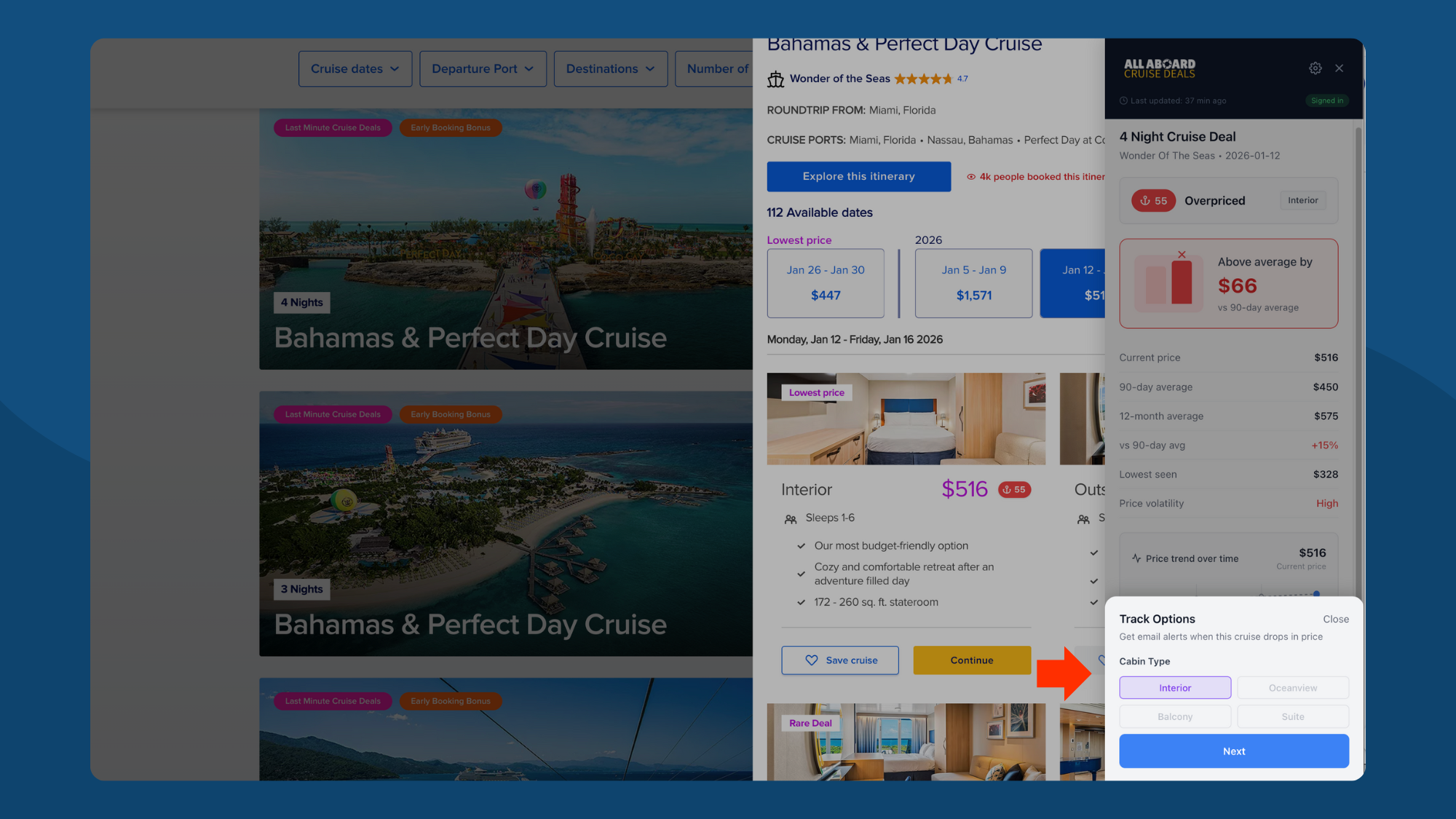
Step 13: Select Cabin Type
Choose which cabin type you want to track.
Step 14: Set Your Alert Threshold
Choose how much the price needs to drop before you're notified: 5%, 10%, 15%, or 20%.
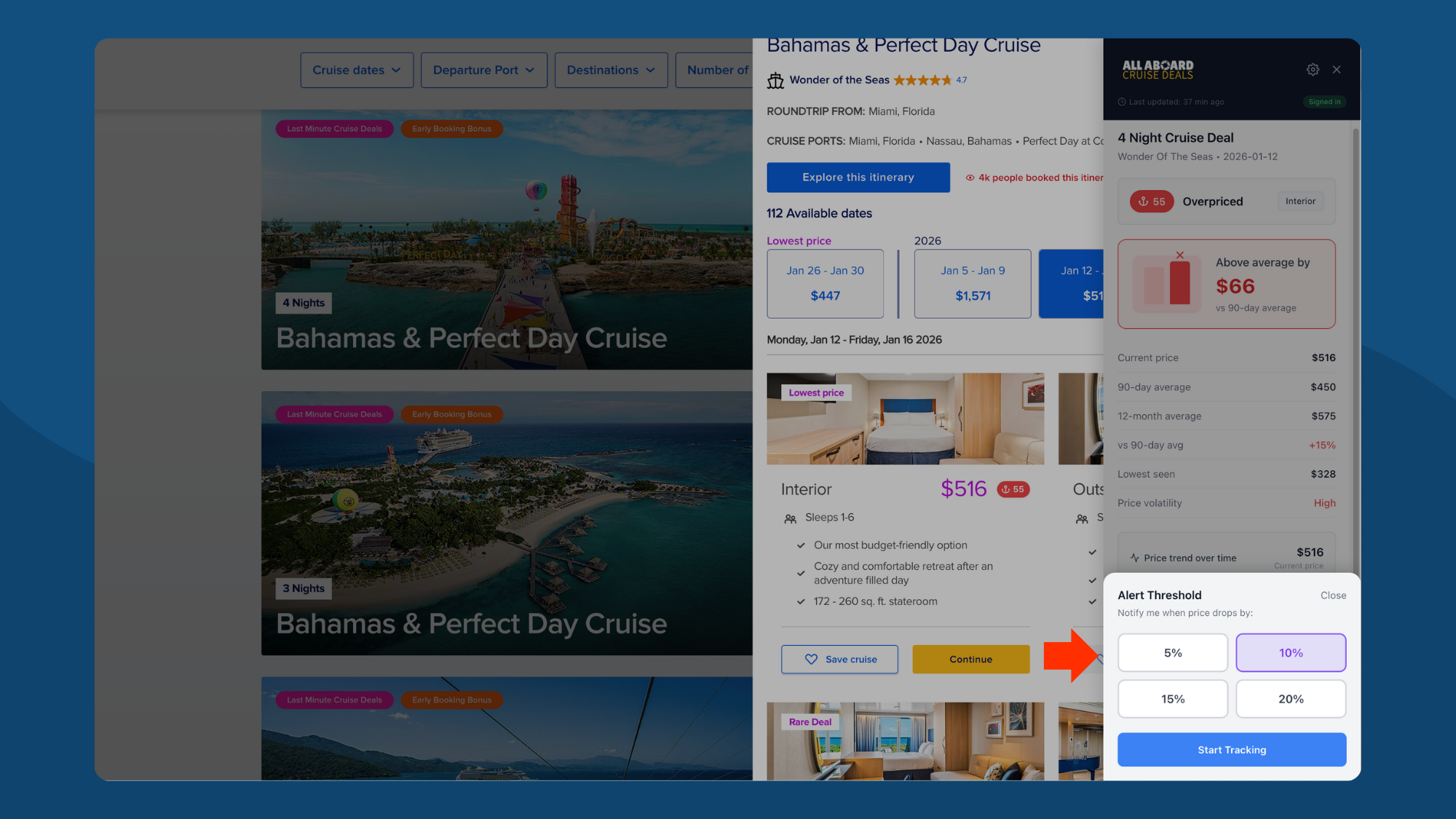
Click Start Tracking. You'll get an email when the price drops by your chosen amount.
We track cruise prices daily across 190+ ships
Free Monday + Friday emails — market reports, price drops, and where the deals are.
Part 6: Book or Wait Recommendations (Pro Feature)
Step 15: Get Actionable Advice
Pro users see Book Now or Wait recommendations based on pricing patterns.
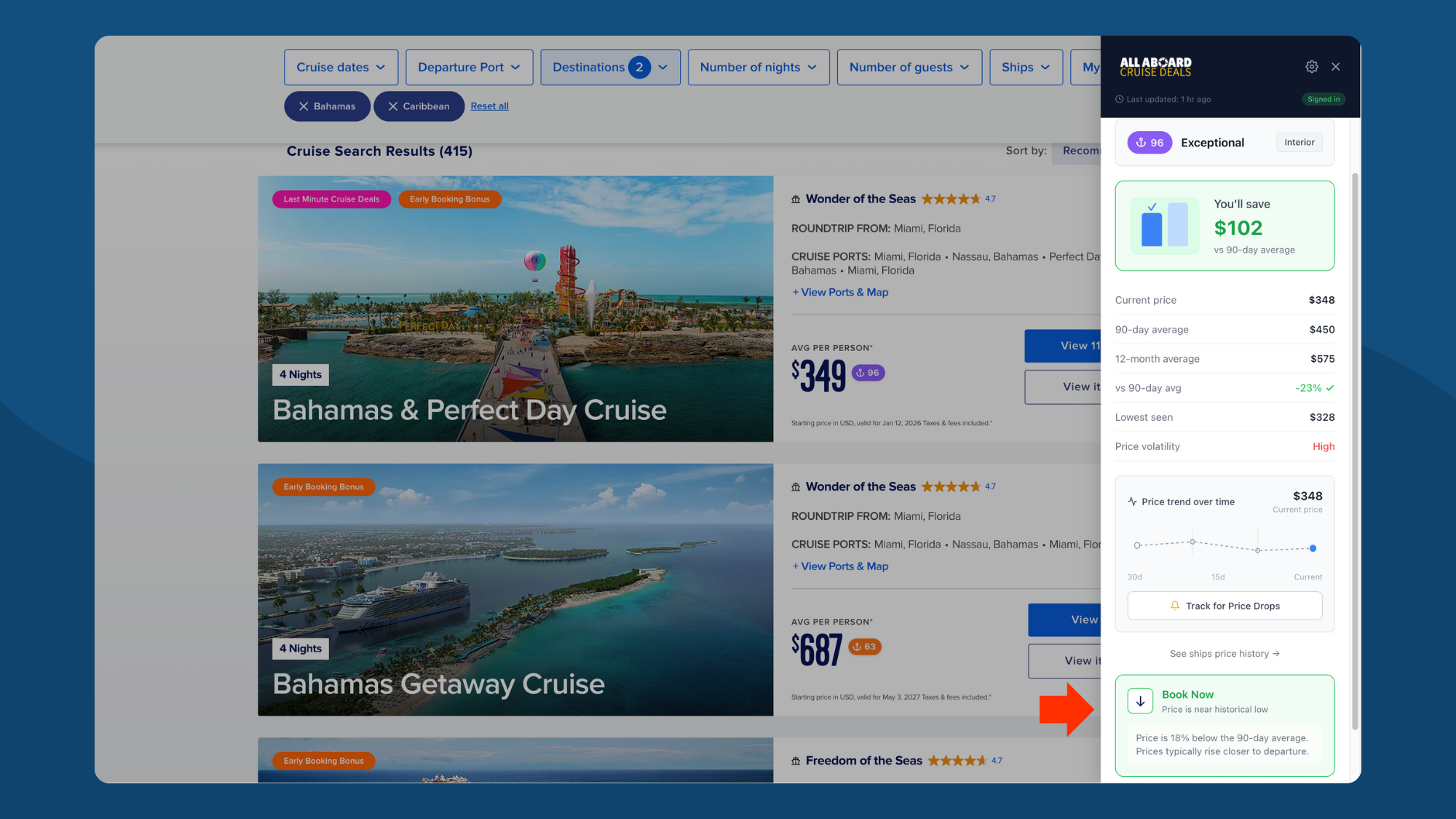
In this example:
- Score: 96 (Exceptional)
- You'll save: $102 vs 90-day average
- vs 90-day avg: -23%
- Price volatility: High
- Recommendation: Book Now — Price is near historical low. Prices typically rise closer to departure.
This tells you not just that it's a good deal, but what to do about it.
Part 7: Tracking Cruise Planner Prices (Pro Feature)
Step 16: Navigate to the Cruise Planner
After you've booked a Royal Caribbean or Celebrity cruise, head to the Cruise Planner to browse add-ons — drink packages, WiFi, dining, excursions. Cruise Radar works here too.
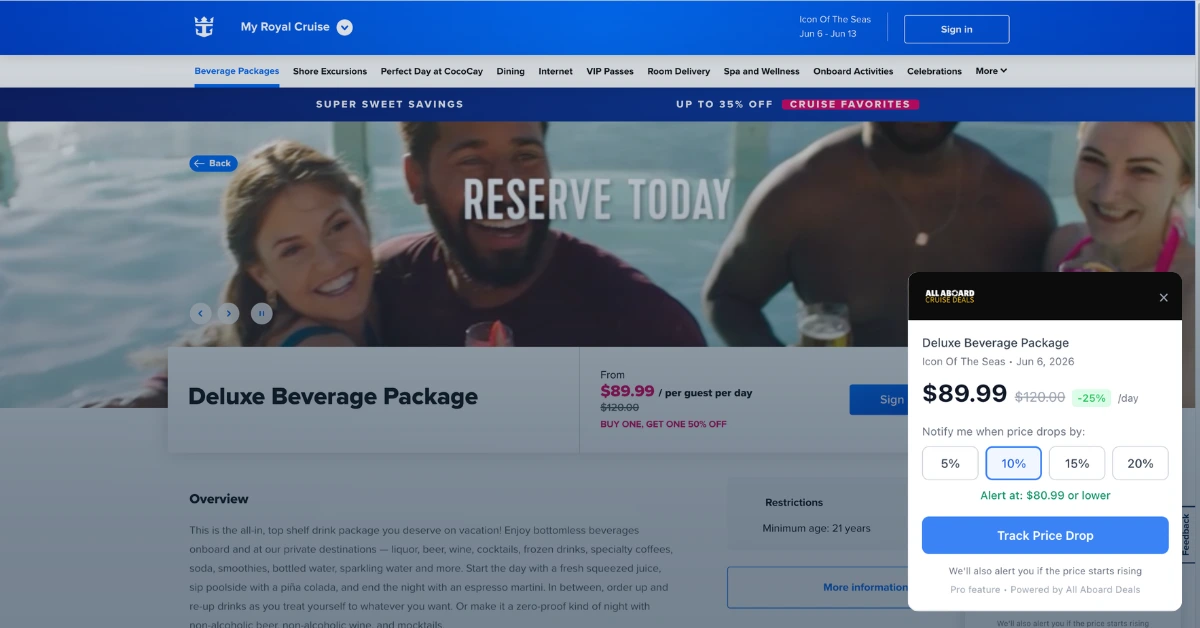
Step 17: See Planner Item Prices in Context
Cruise Radar displays pricing context for planner items the same way it does for cabin fares. You'll see the current price alongside whether a promotion is running.
Cruise lines run planner "sales" constantly — our data shows that 70-90% of planner items display a promo price at any given time. Knowing whether today's price is actually low matters more than whether it says "sale."
Step 18: Set Up Planner Price Alerts
Found a drink package or WiFi plan you want, but not sure if the price will drop? Set an alert.
On the browse page, you'll see a prompt to click into a package to track it. Once you're on the package detail page, select your alert threshold (5%, 10%, 15%, or 20%), then click Track for Price Drops. Cruise Radar checks the price daily and emails you when it drops by your chosen amount.
This works for:
- Beverage packages (Deluxe, Refreshment, Classic)
- WiFi plans (Surf, Surf + Stream)
- Dining packages (Unlimited Dining, specialty restaurants)
- Excursions and shore activities
Step 19: Manage Planner Alerts from Your Account
Your planner alerts live under the Packages tab in Account Settings — separate from your cabin Watchlist. You'll see each tracked item with the package name, ship, sailing date, original price, target price, current price, and savings percentage.
When to set planner alerts:
Right after booking. Planner prices can change multiple times between booking and sailing. Set your alerts early and let Cruise Radar monitor for you instead of checking the planner every day.
Before buying anything. Even if the price looks good today, it may drop further. Track it for a week or two before purchasing — especially drink packages, which tend to be the most expensive add-on.
After a purchase too. Some cruise lines let you cancel and rebook planner items at lower prices. If the price drops after you buy, you may be able to rebook at the new price. Check your cruise line's cancellation policy.
Part 8: Managing Your Account
Step 20: Access Extension Settings
Click the gear icon in the sidebar to access options:
- Hide on this page
- Snooze for 24 hours
- Snooze on this site
- My Watchlist
- Account settings
- Sign out
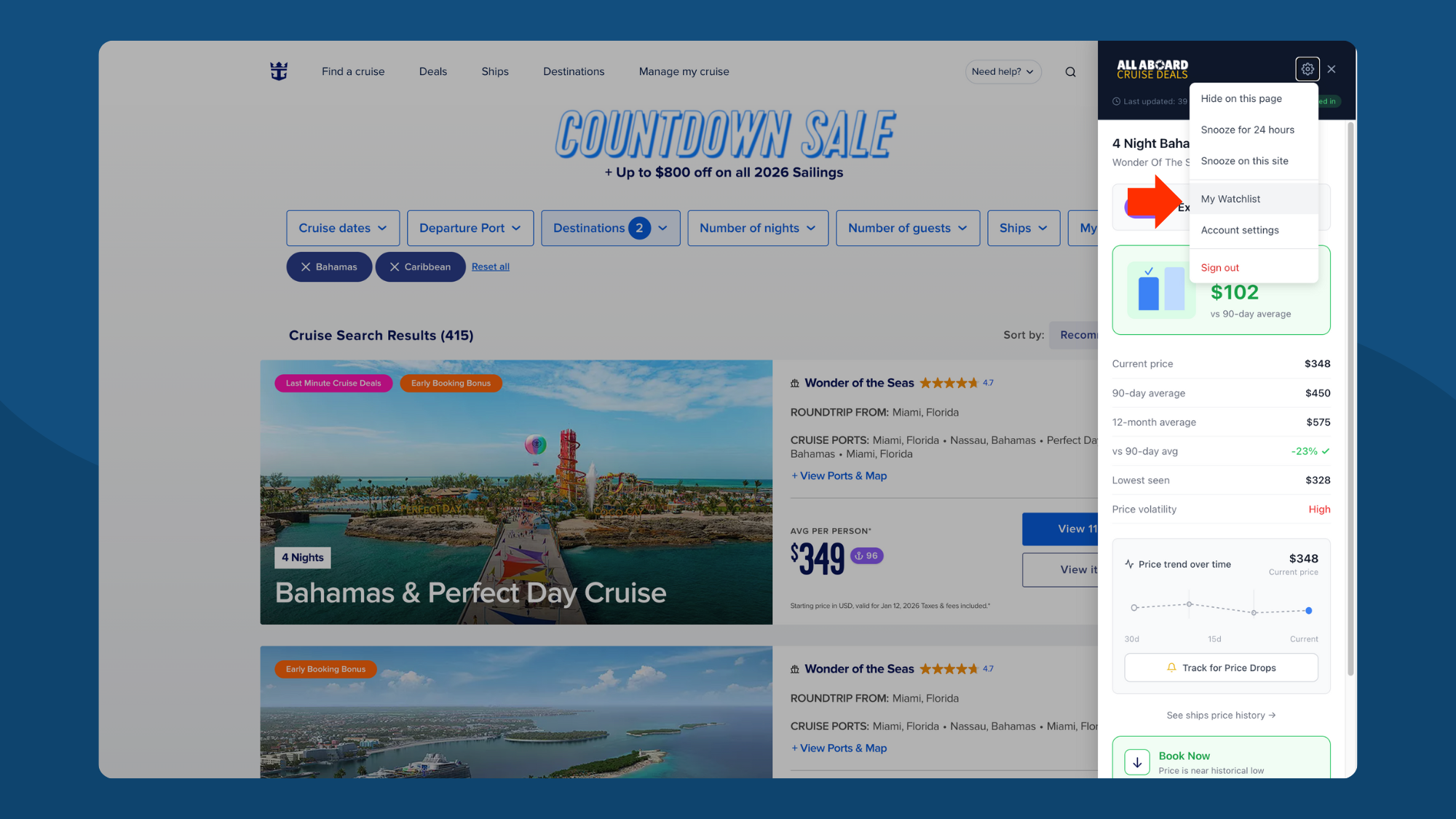
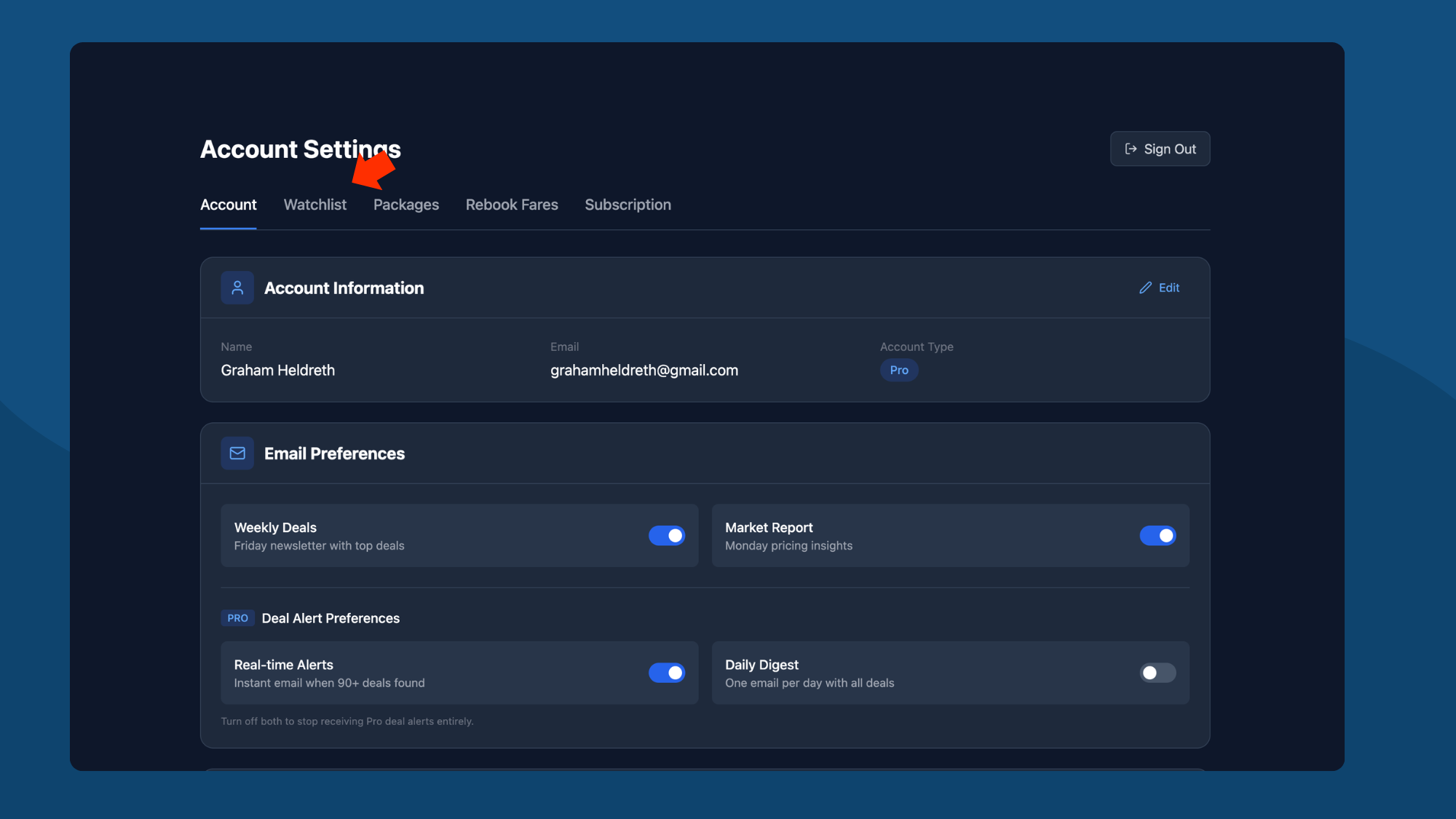
Step 21: View Account Settings
Access your full account settings on the All Aboard Deals website. Here you can:
- View your subscription status
- Manage your watchlist
- Change your password
- Cancel or update your subscription
Step 22: Manage Your Watchlist
View all tracked cruises in one place. See the original price when you started tracking, target alert price, and quick links to book.
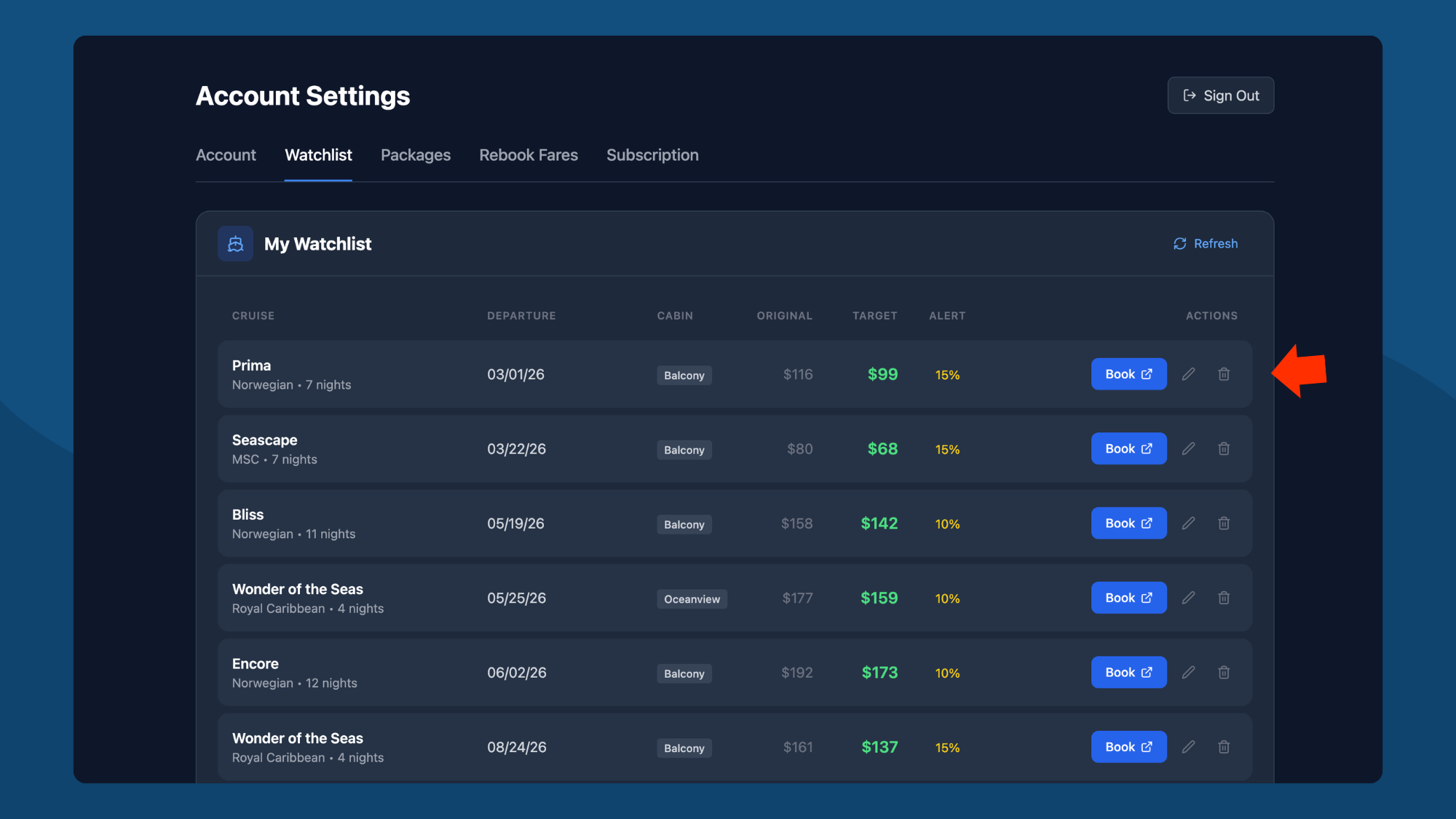
From here you can:
- See all tracked sailings
- View original vs current prices
- Click Book to go directly to the cruise line
- Delete sailings you're no longer interested in
Tips for Getting the Most Out of Cruise Radar
- Check multiple dates. The same ship and itinerary can have wildly different scores depending on departure date.
- Look at the trend. A score of 75 with prices trending down might be worth waiting on. A score of 75 with prices trending up might be worth booking now.
- Compare cabin types. Don't assume Interior is always the best value. Sometimes Balcony is a better deal relative to its historical price.
- Don't ignore fair prices. A score of 65 doesn't mean it's a bad deal — it means it's about average. If the sailing fits your schedule and budget, average is fine.
- Track before you decide. If you're not in a rush, track the sailing for a week or two. You'll get a feel for how prices move.
- Use Book/Wait recommendations. If you're a Pro user, let the data guide your decision. When it says Book Now, it's because prices are near historical lows.
Free vs. Pro Features
| Feature | Free | Pro |
|---|---|---|
| Deal scores (0-100) | Yes | Yes |
| 90-day average comparison | Yes | Yes |
| Lowest price seen | Yes | Yes |
| Price trend chart | Yes | Yes |
| Track sailings | 2 | Unlimited |
| 12-month average | — | Yes |
| Book or Wait recommendations | — | Yes |
| Price volatility scores | — | Yes |
| Rebook fare alerts | — | Yes |
| Planner price alerts | — | Yes |
Pro costs $12/month or $89/year.
We're Just Getting Started
Cruise Radar launched in December 2025. We're actively adding new features, expanding ship coverage, and improving our scoring algorithms based on user feedback. Have a feature request? Let us know.
Cruise Radar is built by All Aboard Deals. We track 35,000+ cruise fares weekly so you don't have to.

Graham H — Founder, All Aboard Deals
Graham has been cruising for over a decade and has sailed on 15+ cruises across Royal Caribbean, Carnival, Norwegian, and Virgin.
He built All Aboard Deals to track cruise prices the same way traders track charts, monitoring 32,500+ sailings and spotting fares that fall well below their recent averages.
Editorial Standards
All guides are based on real pricing data, live fare checks, and historical trends. Content is updated as ships launch and prices change. Questions or corrections? Contact us