
How to Track Royal Caribbean & Celebrity Packages in Your Own Currency (CAD, GBP, EUR, AUD)
Set your home currency to track Royal Caribbean and Celebrity Cruise Planner prices in CAD, GBP, EUR or AUD — and stop fake exchange-rate price-drop alerts.

If you cruise from outside the US, you have probably seen a package "price drop" that turned out to be nothing — the price didn't fall, the exchange rate just moved. We fixed that. You can now track Royal Caribbean and Celebrity Cruise Planner prices in your own currency: USD, CAD, GBP, EUR or AUD. (That is for the add-on packages; to track the cruise fare itself, use our Royal Caribbean and Celebrity price trackers.)
This is a walkthrough of how to set it up. If you just want the general tour of package tracking, that lives in the All Aboard Deals Pro guide — this post is specifically about getting the currency right.
Quick Answer — Track Packages in Your Currency
TL;DR| Step | Where |
|---|---|
| 1. Set your home currency | Account tab |
| 2. Add a package to track | Packages tab |
| 3. Pick a drop alert, or enter what you paid | In the wizard |
| 4. Tracked in your own currency | Done |
Prefer to watch? Here's the full walkthrough.
The "price drop" that was just the exchange rate
Here is the trap. A Deluxe Beverage Package might show about US$78 on royalcaribbean.com — and about CA$108 on royalcaribbean.ca. Same package, same sailing. The CA$30 difference isn't a discount. It's the US-to-Canadian exchange rate, roughly 1.39 to 1.
Now picture tracking that package. You saw CA$108, so that's the number in your head. But if the tracker is checking the US price of US$78, it does the math, sees a number ~28% lower than the one you're watching, and emails you a "price dropped" alert.
Nothing dropped. You were comparing Canadian dollars to US dollars. For Canadian, UK, European and Australian cruisers, that mismatch turned a useful alert into noise.
The fix is boring in the best way: tell us your currency once, and every package you track is recorded and compared in that currency. CAD against CAD. GBP against GBP. An alert only fires when the real price moves.
One price tells you nothing. The package that's "on sale" today was the same price last week. History is the only thing that tells you whether a number is actually good — and history only works if it's all in one currency.
Step 1 — Set your home currency
Sign in and go to your Account page, then open the Account tab. In your profile you'll see a Currency field with five options: USD, CAD, GBP, EUR and AUD. Click the one you pay in. It saves immediately — no Save button.
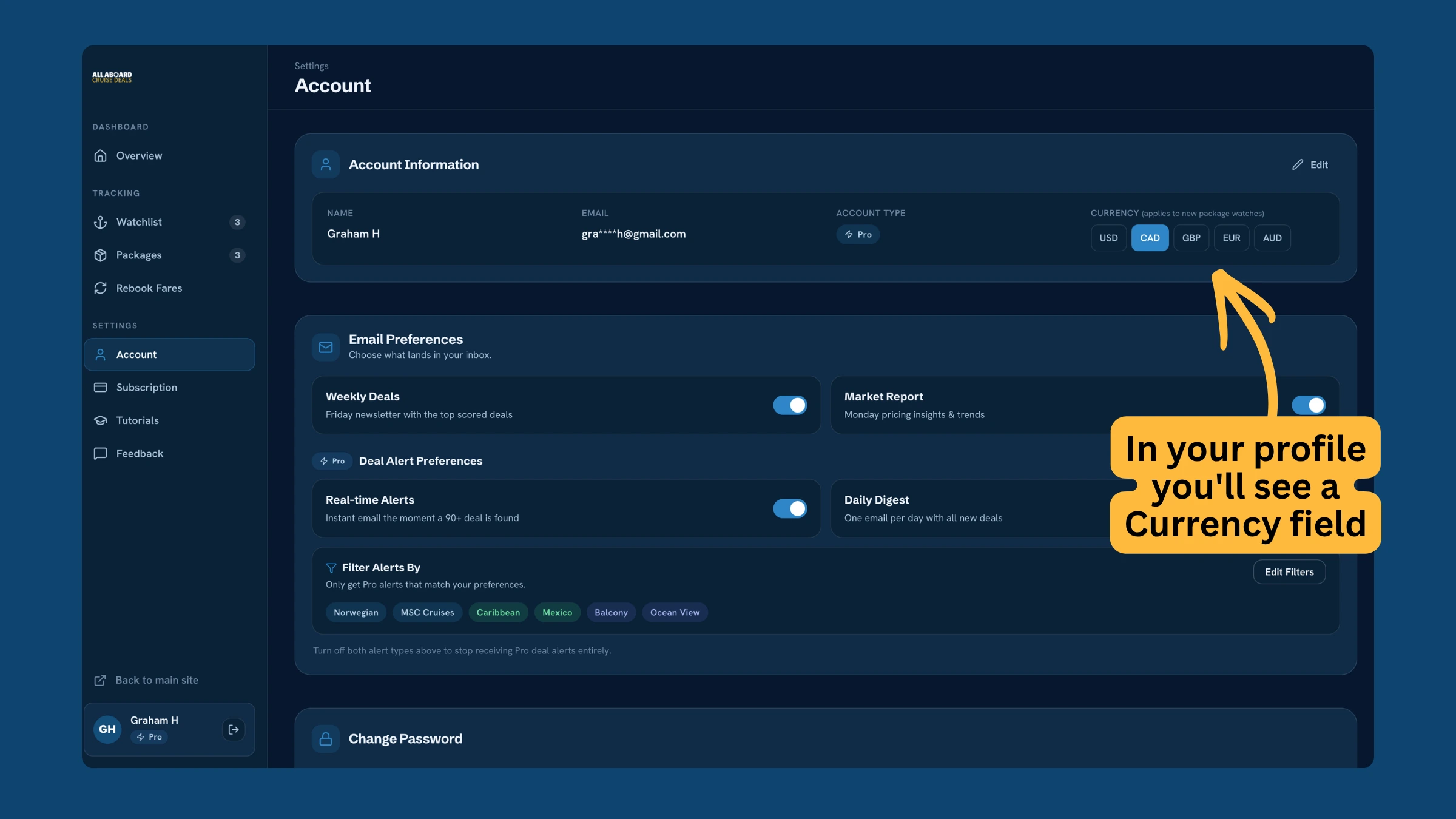
One thing to know up front: this applies to new package watches. Anything you already track keeps the currency it was added in. If you tracked packages before setting CAD here, remove and re-add them to move them over. We don't auto-convert old prices, on purpose — converting old numbers is exactly how the false alerts started.
Step 2 — Open the package tracker
Still on your Account page, open the Packages tab and click Add Package. That opens a short three-step wizard.

If you don't see the Packages tab or the Add Package button is locked, you're on a free account — package tracking is part of All Aboard Deals Pro.
Step 3 — Pick the cruise line
The wizard opens on "Choose a cruise line." Pick Royal Caribbean or Celebrity Cruises. Both lines' Cruise Planner add-ons are covered — beverage, WiFi, dining, excursions, spa, onboard activities and The Key.

Track your packages in your own currency
Free Monday + Friday emails — market reports, price drops, and where the deals are.
Step 4 — Choose your ship and sail date
On "Ship & sail date," pick your ship from the dropdown, then your sailing date. The dates load once you've chosen a ship, so give it a second.
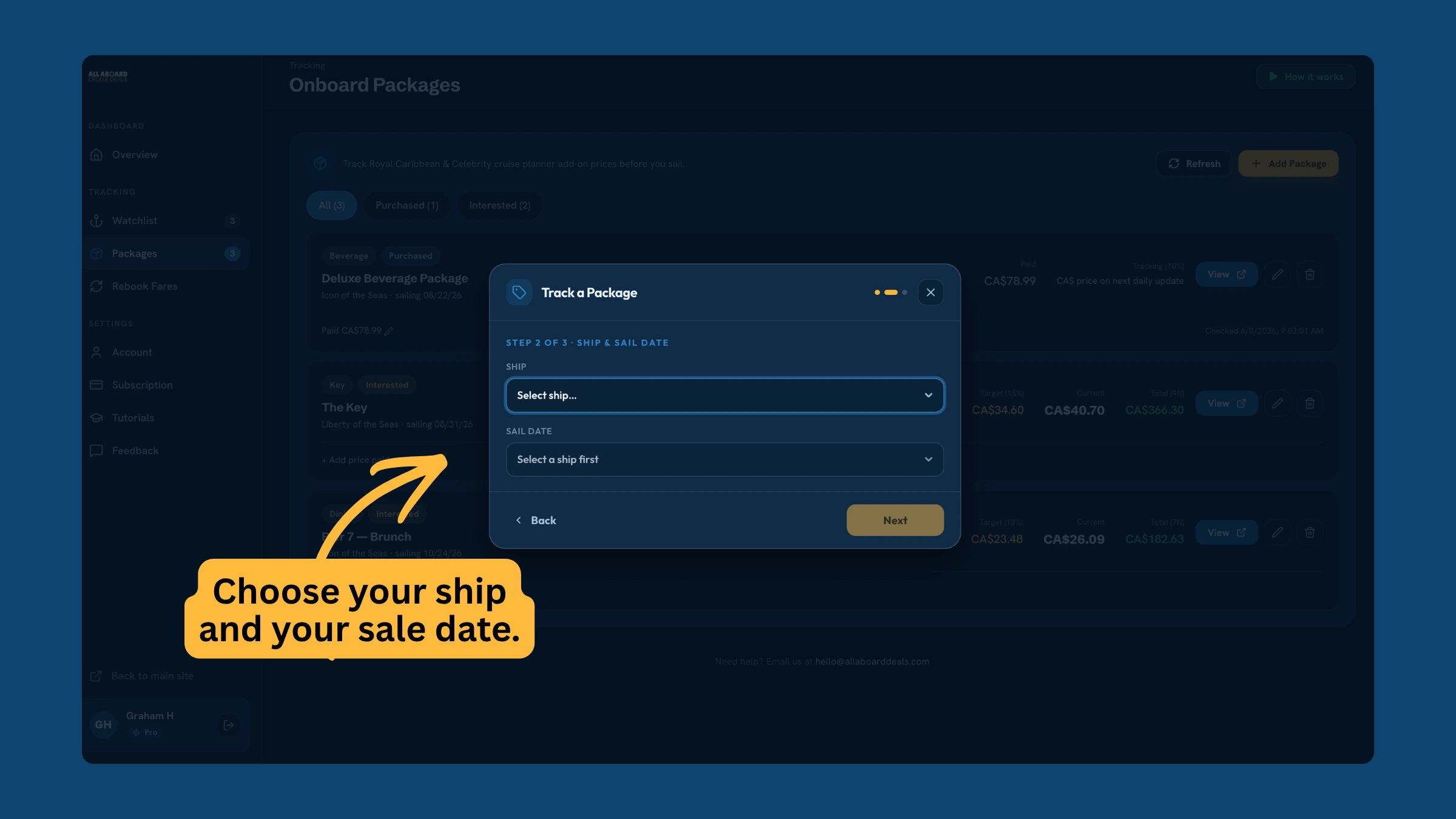
This matters because package prices are sailing-specific — the same package is priced differently on a March Caribbean week than a December holiday week. We track the exact sailing you're booked on, not a fleet average.
Step 5 — Pick a package and set your alert
On "Pick a package," tap a category — Beverage, WiFi, Dining, Activities, Spa, The Key or Excursions — and the available packages load underneath. This is the part that matters for currency: every price here is shown in your currency, so you'll see CA$, £, € or AU$, never a bare dollar sign you have to second-guess.
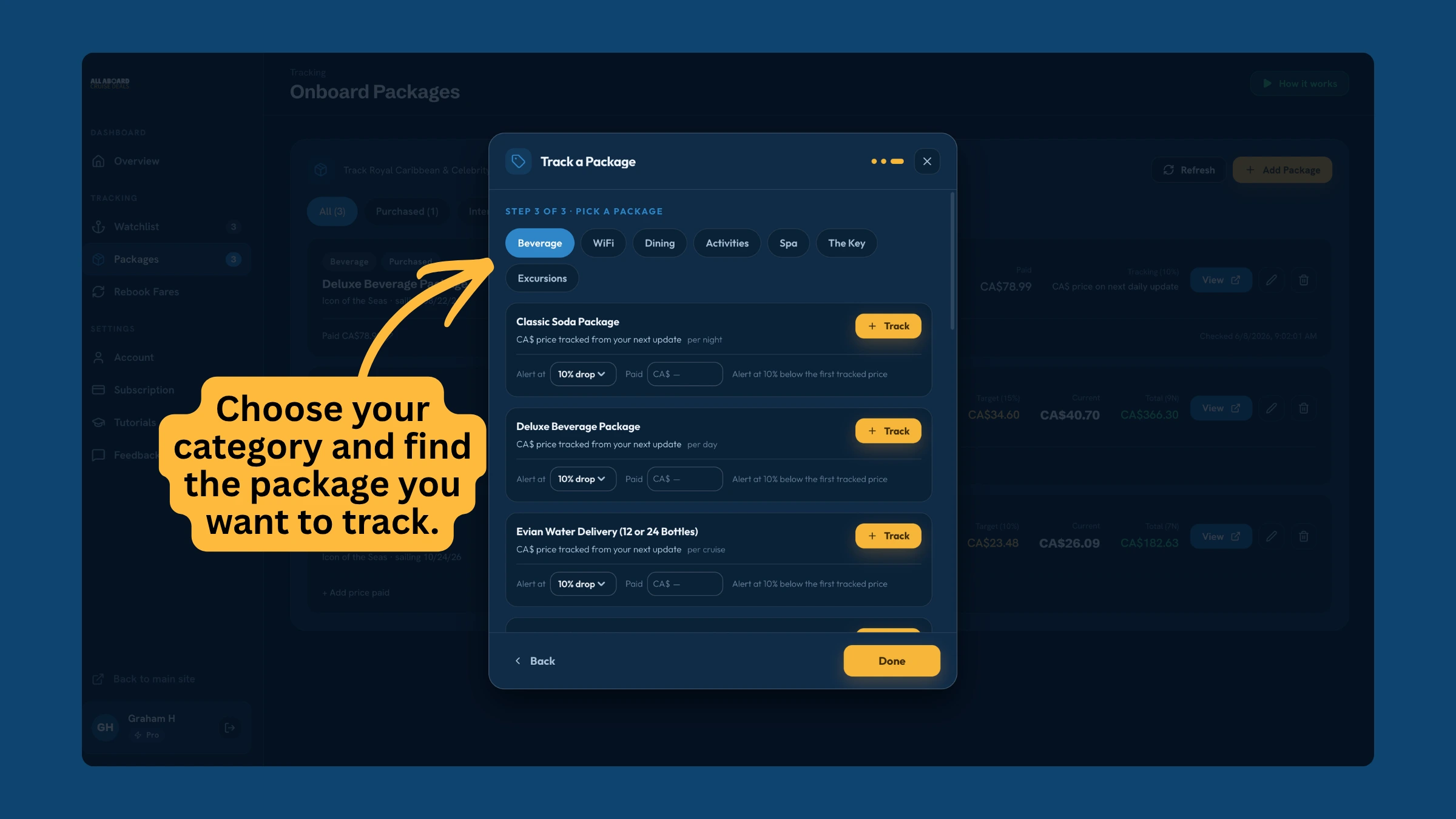
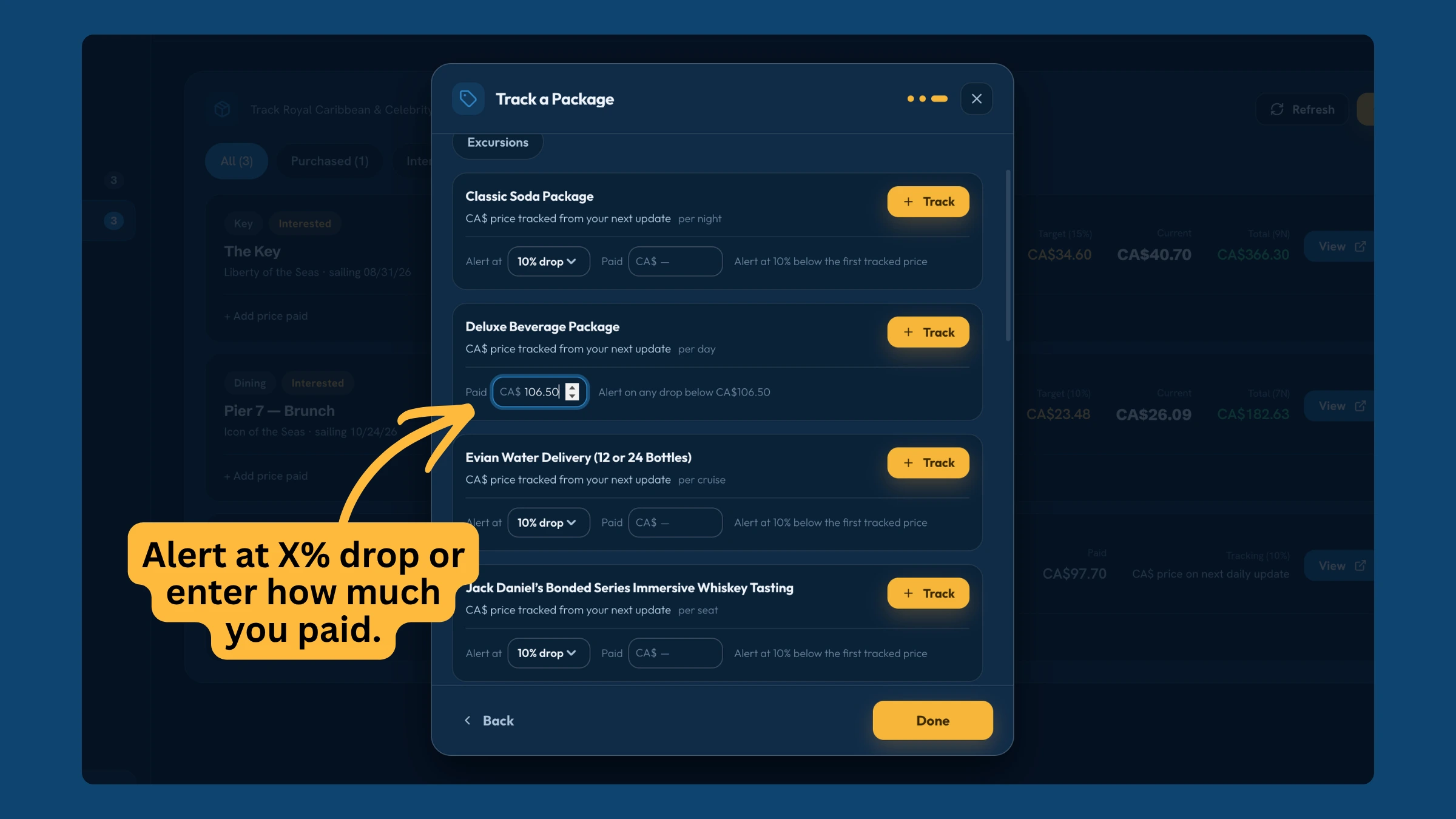
For each package you can:
- Alert at X% drop — choose 5%, 10%, 15% or 20%. The default is 10%.
- Paid — optional. If you already bought the package, enter what you paid (in your currency) and we'll alert you any time it drops below that, so you can rebook at the lower price and claim the difference.
Then hit Track.
One detail for non-US currencies: for beverage, WiFi and dining, your first price in CAD/GBP/EUR/AUD is captured on the next daily update — usually within a day — so you might briefly see "price tracked from your next update" instead of a number. Excursions, spa and activities show a live price right away. Either way, your alert is set the moment you hit Track.
Step 6 — Confirm it's tracking in your currency
Back on the Packages tab, your new watch appears as a card. Check that the prices read in your currency — Paid, Target and Current should all carry your symbol (e.g. CA$108.55, CA$97.70). That's how you know the comparison is like-for-like and a future alert will be real.

From here, you don't have to do anything. We check the price every day and email you only when it actually drops past your threshold — in the currency you set.
Let us check the Cruise Planner daily for a better price
When a package price drops on your sailing — in USD, CAD, GBP, EUR, or AUD — we email you. You cancel, rebuy at the lower price, and keep the difference.
A few things worth knowing
- Currencies supported: USD, CAD, GBP, EUR and AUD. One home currency per account.
- New watches only: changing your currency doesn't touch packages you already track. Remove and re-add to switch one over.
- Each watch is locked to its currency: that's deliberate. It's what stops an old US-dollar price from being re-read as Canadian dollars and re-creating the false-alert problem.
- The cruise fare is separate: this is Cruise Planner add-ons only. Fare tracking is its own tool and stays in USD.
Wondering whether a given package is even worth buying once you're tracking it? That's a different question with its own answers — see whether the Deluxe Beverage Package pays off, what WiFi actually costs onboard, and how dining packages compare to paying per meal. And if you want to be choosy about which alerts you turn on at all, we wrote about which price alerts are worth setting up.
If you're a Canadian, UK, European or Australian cruiser, this is the difference between an alert you can trust and one you learn to ignore. Set your currency once on your account page, add the packages you're watching, and the next "price drop" you get will be a real one.
Package tracking and drop alerts are part of All Aboard Deals Pro. A free account is enough to set your currency and look around.
Frequently Asked Questions
 A daily cruise trivia game
Graham H — Founder, All Aboard Deals
Graham has been cruising for over a decade and has sailed on 15+ cruises across Royal Caribbean, Carnival, Norwegian, and Virgin.
He built All Aboard Deals to track cruise prices the same way traders track charts, monitoring 32,500+ sailings and spotting fares that fall well below their recent averages.
Editorial Standards
All guides are based on real pricing data, live fare checks, and historical trends. Content is updated as ships launch and prices change. Questions or corrections? Contact us